
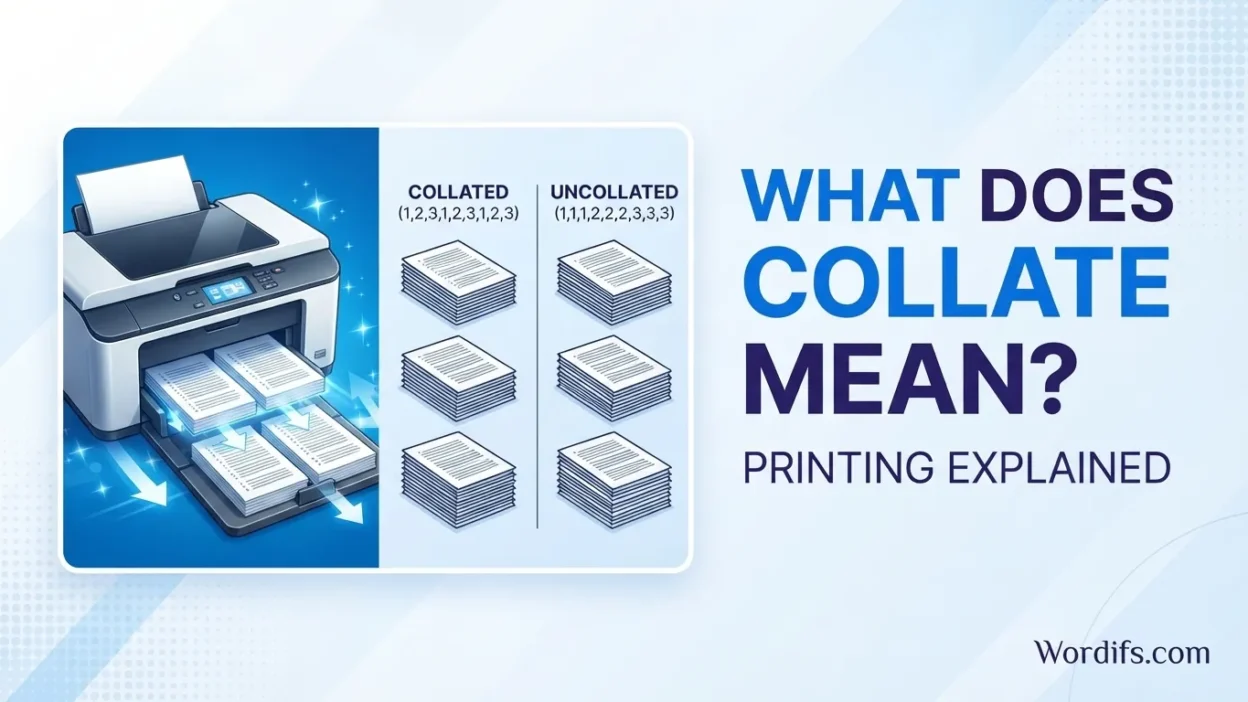
When printing a document, collate means arranging multiple copies of a document in the correct page order. If you print three copies of a five-page document with the collate option turned on, your printer produces three complete sets: pages 1, 2, 3, 4, and 5, followed by another complete set in the same order. Each copy is ready to read, staple, or distribute.
The collate setting is especially useful when printing reports, school assignments, business documents, training materials, or multi-page handouts. Instead of manually sorting individual pages after printing, you can let your printer or computer organize the copies automatically.
Understanding the difference between collated and uncollated printing helps you choose the right setting, save time, and avoid confusion when printing multiple copies.
Quick Answer: What Does Collate Mean When Printing?
Collate means printing multiple copies of a document in complete page order. For example, printing three collated copies of a five-page file produces three separate sets of pages 1–5. Without collating, the printer groups identical pages together, printing all copies of page 1, then all copies of page 2, and so on.
What Does Collate Mean on a Printer?
The word collate means to collect, compare, or arrange items in a particular order. In printing, it refers to organizing pages into complete document sets when you request multiple copies.
Imagine that you need four copies of a 10-page report. Rather than printing all four copies of every individual page together, a collated print job completes one report before moving on to the next.
For example, the printer organizes the job like this:
- Copy 1: Pages 1, 2, 3, 4, 5, 6, 7, 8, 9, 10
- Copy 2: Pages 1, 2, 3, 4, 5, 6, 7, 8, 9, 10
- Copy 3: Pages 1, 2, 3, 4, 5, 6, 7, 8, 9, 10
- Copy 4: Pages 1, 2, 3, 4, 5, 6, 7, 8, 9, 10
Each report is complete and arranged in the proper sequence.
The collate setting does not change the document’s wording, page layout, font, or content. It simply controls how multiple copies are organized during printing.
Collated vs. Uncollated Printing: What’s the Difference?
The main difference between collated and uncollated printing is how the printer groups pages when producing multiple copies.
What Is Collated Printing?
Collated printing organizes each copy into a complete document before printing the next copy.
Suppose you want three copies of a four-page document. A collated print job produces:
1, 2, 3, 4 | 1, 2, 3, 4 | 1, 2, 3, 4
Each group represents one complete copy.
Collated printing is ideal when you need separate documents for different people. You can collect the printed pages, staple each set, and distribute them without sorting the pages manually.
What Is Uncollated Printing?
Uncollated printing groups the same page together across all requested copies.
If you print three copies of a four-page document without collating, the output looks like this:
1, 1, 1 | 2, 2, 2 | 3, 3, 3 | 4, 4, 4
You receive three copies of page 1, followed by three copies of page 2, and so on.
This arrangement is helpful when you need a large quantity of a particular page or plan to assemble the documents yourself.
Collated vs. Uncollated Printing at a Glance
| Feature | Collated Printing | Uncollated Printing |
| Page arrangement | Complete document sets | Identical pages grouped together |
| Example for 3 copies of 4 pages | 1-2-3-4, repeated 3 times | Three 1s, then three 2s, and so on |
| Best for | Reports, booklets, assignments, handouts | Forms, flyers, individual pages |
| Manual sorting | Usually unnecessary | Often necessary |
| Stapling complete copies | Easier | Requires sorting first |
| Printing purpose | Organized document sets | Grouped page quantities |
Which should you choose? Select Collate when you want several complete copies of a document. Leave it unchecked when you want all copies of each individual page printed together.
How Does the Collate Setting Work?
The collate function uses the document’s page sequence and the number of copies you request to determine the printing order.
When you select multiple copies, your computer, printer driver, or printer’s internal software processes the document according to the selected setting.
For example, if you print six copies of a 12-page employee handbook with collating enabled, the output is organized into six complete 12-page sets.
The process generally follows these steps:
- Open the document you want to print.
- Select the Print option.
- Enter the number of copies.
- Find the Collate checkbox or setting.
- Enable Collate if you need complete sets.
- Review the print preview and other settings.
- Click Print.
The exact location of the collate option depends on your operating system, printer driver, and application. Some printers handle collating automatically, while others offer the setting directly in their print menus.
How to Collate When Printing in Windows
If you use a Windows computer, you can usually find the collate option in the application’s print window or the printer properties.
Follow these steps:
- Open your document in Microsoft Word, a PDF viewer, or another application.
- Press Ctrl + P to open the print dialog.
- Select the printer you want to use.
- Enter the number of copies.
- Look for the Collated or Collate option.
- Select it to print complete document sets.
- Click Print.
Depending on the application, you may see a small illustration showing the difference between collated and uncollated page arrangements.
If the option is missing, check the printer’s Properties or Preferences menu. You may also need to expand the print dialog to view additional settings.
Keep in mind that Windows print interfaces vary across applications and printer models, so the setting may not appear in exactly the same place on every computer.
How to Collate When Printing on a Mac
Mac users can also control the arrangement of multiple copies through supported print dialogs.
To print collated copies:
- Open your document.
- Select File > Print or press Command + P.
- Choose the appropriate printer.
- Enter the number of copies.
- Look for the Collate Pages option or a similar setting.
- Enable the option if available.
- Review the settings and select Print.
Some applications provide collating controls directly, while others rely on printer-specific options. If you cannot find the setting, expand the print dialog or inspect the printer’s available options.
For documents with many pages, check the preview and print a small test job if the page order is especially important.
How to Collate When Printing a PDF
PDF files are frequently used for contracts, reports, manuals, worksheets, and other multi-page documents.
The collate setting in a PDF print dialog works in much the same way as it does in other applications.
For example, suppose you need five copies of a six-page PDF.
With collating enabled, the output contains five complete sets of pages 1 through 6. With collating disabled, the printer groups five copies of page 1 together, followed by five copies of page 2, continuing through page 6.
To print a collated PDF:
- Open the PDF in your preferred PDF reader.
- Open the Print dialog.
- Set the number of copies.
- Enable the Collate option if it is available.
- Confirm the page range, paper size, and orientation.
- Print the document.
If you print PDFs through a web browser, the available options may differ from those in a dedicated PDF reader. The printer driver may also determine whether collating is available.
Does Collating Affect Double-Sided Printing?
No. Collating and double-sided printing control two different aspects of a print job.
Collating controls page order across copies, while double-sided printing controls whether content is printed on one or both sides of the paper.
You can use these settings together.
For example, imagine that you need four copies of a 20-page report. If you enable both collating and double-sided printing, the printer can produce four complete reports, with pages printed on both sides of the sheets when supported.
This combination can reduce paper use while keeping each report organized.
However, the final arrangement depends on the document’s page count, duplex settings, printer capabilities, and whether the document includes blank pages.
For professional reports or booklets, check the binding direction and page orientation before printing a large batch.
When Should You Use Collated Printing?
Collated printing is useful whenever multiple people need their own complete copy of the same document.
1. School Assignments and Classroom Handouts
Teachers often print worksheets, reading materials, quizzes, and lesson plans for students.
If a worksheet contains eight pages and you need 25 copies, collating produces 25 complete sets. You do not have to sort the pages individually before distributing them.
2. Business Reports and Presentations
Businesses frequently print financial reports, meeting agendas, project updates, and employee handbooks.
Collating keeps each document together, making it easier to distribute materials during meetings or training sessions.
3. Manuals and Instruction Guides
Multi-page manuals need to remain in the correct sequence. Collating helps organize each copy so readers can follow the instructions without searching for missing or misplaced pages.
4. Contracts and Administrative Documents
When preparing multiple copies of a multi-page agreement or application packet, collating helps ensure that each set contains the pages in the intended order.
Always verify that every copy is complete before signing, distributing, or filing important documents.
5. Personal Documents
Collating can also help with household budgets, travel itineraries, recipes, project plans, and other documents that you want to share with several people.
When Should You Turn Collate Off?
Although collating is useful for complete documents, it is not always the best option.
Consider turning it off in these situations:
- Printing flyers: You may want all copies of the same flyer grouped together.
- Printing individual forms: Grouping identical pages may make distribution or processing easier.
- Printing page-specific materials: You may need a stack of one page for a particular task.
- Assembling documents manually: If you have a specific sorting process, uncollated output may suit your workflow.
- Printing selected pages in bulk: You may want several copies of one or two pages rather than complete document sets.
For example, if you need 100 copies of a single-page permission form, collating usually makes no practical difference because there is only one page. If you need multiple copies of several different forms, however, the selected setting can affect the output order.
Does Collating Save Paper, Ink, or Time?
Collating does not inherently reduce paper or ink consumption. It primarily changes the order in which pages are printed.
If you print three copies of a 10-page document, you generally need 30 printed pages whether collating is enabled or disabled.
However, collating can save time and effort because you do not have to organize each document manually.
The biggest practical advantages are:
- Less time spent sorting pages.
- Faster preparation of complete document sets.
- Easier stapling and binding.
- Fewer opportunities to mix up pages between copies.
- More convenient distribution of multi-page documents.
You can reduce paper use by combining collating with double-sided printing when appropriate. Printing multiple pages on one sheet may also help, although it can make text harder to read.
The best settings depend on whether your priority is organization, paper savings, print speed, or readability.
Common Problems With Collated Printing and How to Fix Them
Sometimes a print job does not come out in the expected order. Several issues can explain why.
The Printer Prints Uncollated Pages
If you receive stacks of identical pages, check whether Collate is disabled in the print dialog.
Also inspect the printer’s Properties or Preferences menu. Some applications and drivers have separate settings, so confirm which options are active before printing again.
The Collate Option Is Missing
Not every print dialog displays the same controls. Try expanding the dialog, opening the printer properties, or using another supported application.
For a network printer, available settings may also depend on the installed driver and printer capabilities.
Pages Appear in the Wrong Order
Check the page range, reverse-order setting, and any custom page-sequence options. These settings can change how pages are produced.
Print a small test batch before printing many copies of an important document.
Copies Are Incomplete
Verify that the original file contains every page and that the selected print range includes the entire document. Check for paper jams, interrupted jobs, or printer errors as well.
The Printer Does Not Separate Copies Automatically
Some devices have finishing features that can separate or staple completed sets. These functions are different from the basic collate setting and may require compatible hardware.
If your printer lacks automatic finishing, you can still collate pages in software, but you may need to separate and staple the copies yourself.
Frequently Asked Questions
1. What does collate mean when printing multiple copies?
Collate means arranging each copy of a document in complete page order. For example, three copies of a five-page document are printed as three sets of pages 1 through 5.
2. Should I select collate when printing?
Select Collate when you want separate, complete copies of a multi-page document. Leave it off when you want identical pages grouped together for manual assembly or another specific purpose.
3. What is the difference between collated and uncollated printing?
Collated printing produces complete document sets one after another. Uncollated printing groups the same page across all requested copies before moving to the next page.
4. Does collate mean printing on both sides?
No. Collating controls the order of pages across multiple copies. Double-sided printing, also called duplex printing, places content on both sides of a sheet of paper.
5. Does collating use more paper?
No. Collating itself does not increase the number of pages required for the same document and number of copies. It changes the printing order, not the total page count.
6. Can I collate a PDF document?
Yes. Many PDF readers and printer drivers support collating. Set the number of copies in the print dialog and enable Collate if the option is available.
7. Why is my printer not collating correctly?
The collate option may be disabled, unavailable in the selected application, or overridden by printer settings. Check the print dialog, printer properties, page range, and driver options.
Final Thoughts
Understanding what collate means when printing makes it easier to choose the right settings for everyday printing tasks. Collated printing arranges multiple copies into complete, correctly ordered document sets, while uncollated printing groups identical pages together.
For reports, school handouts, manuals, and business documents, collating is usually the most convenient choice. Before printing a large batch, confirm the number of copies, page range, and printer settings to ensure your documents come out exactly as needed.

Orvian Treloux works on the Wordifs site developing structured blogs coordinating via wordifs@gmail.com to ensure accuracy originality clarity usefulness engagement and long term trust among global readers across digital platforms.